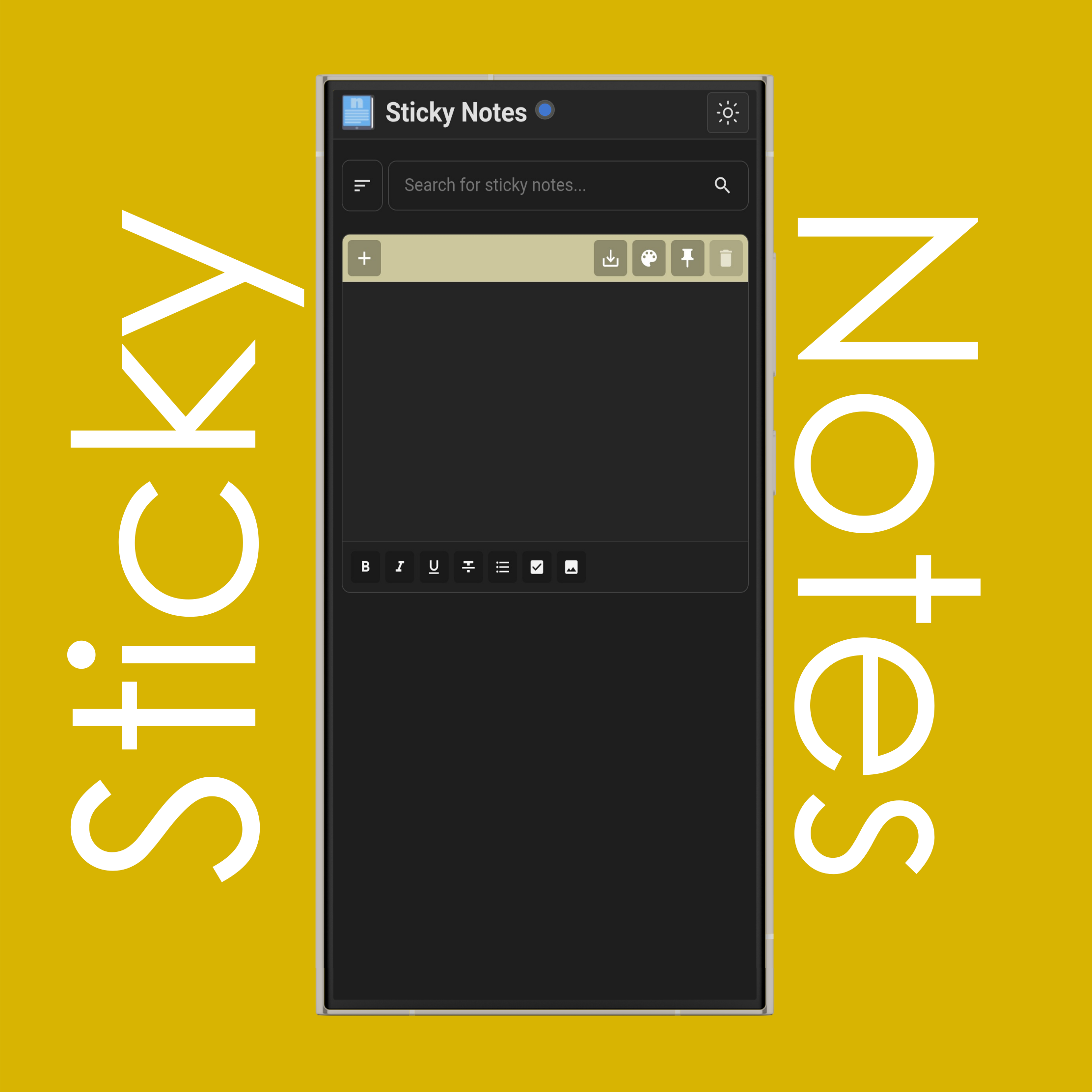
Click/tap button on the top left to add a new sticky note to your list.
NOTE: You may add as long as you want but larger number of sticky notes may affect website loading.
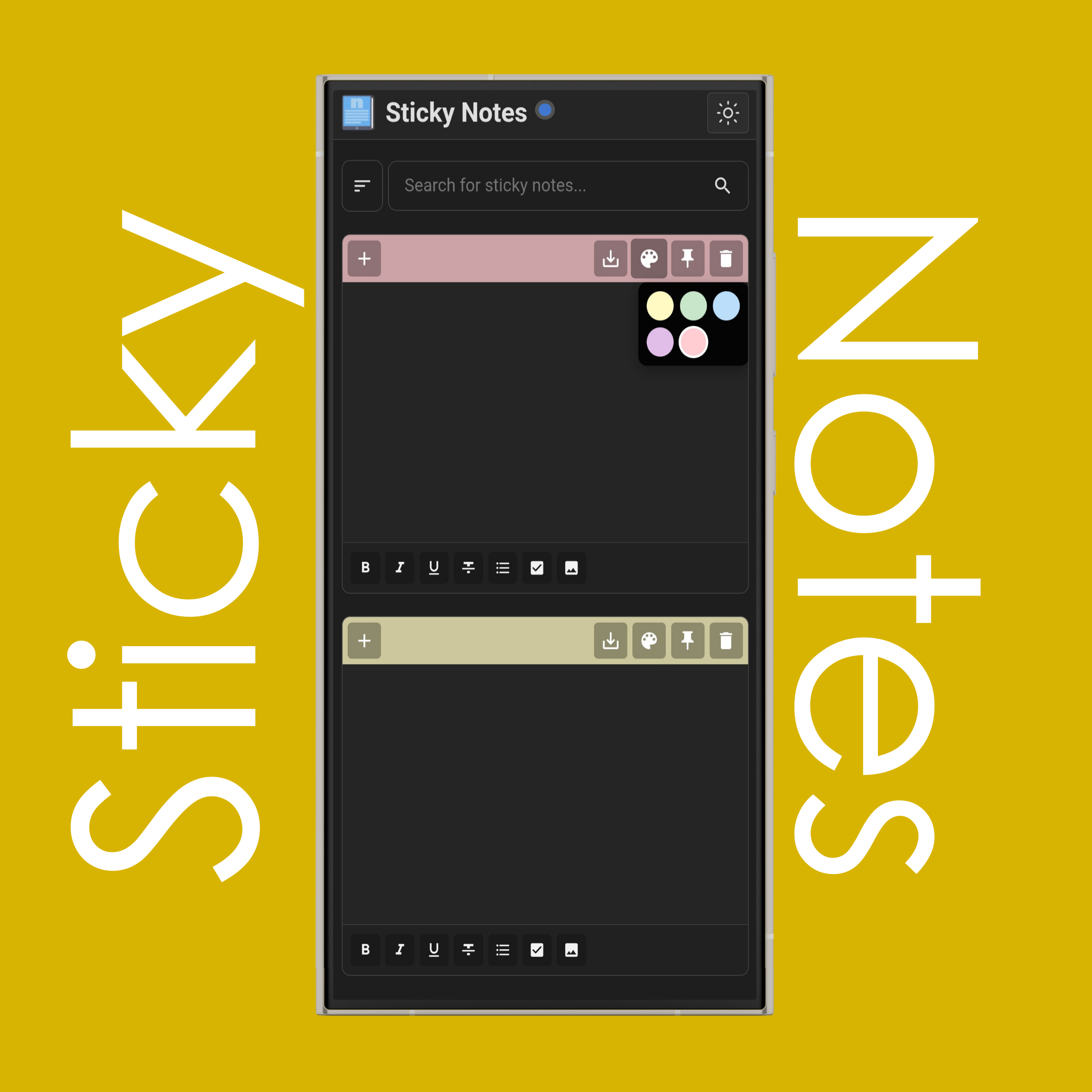
Click/tap button to change the color of the sticky note.
NOTE: All background of the sticky notes in dark mode are black, only top part changes color. For full color changes, enable light mode.
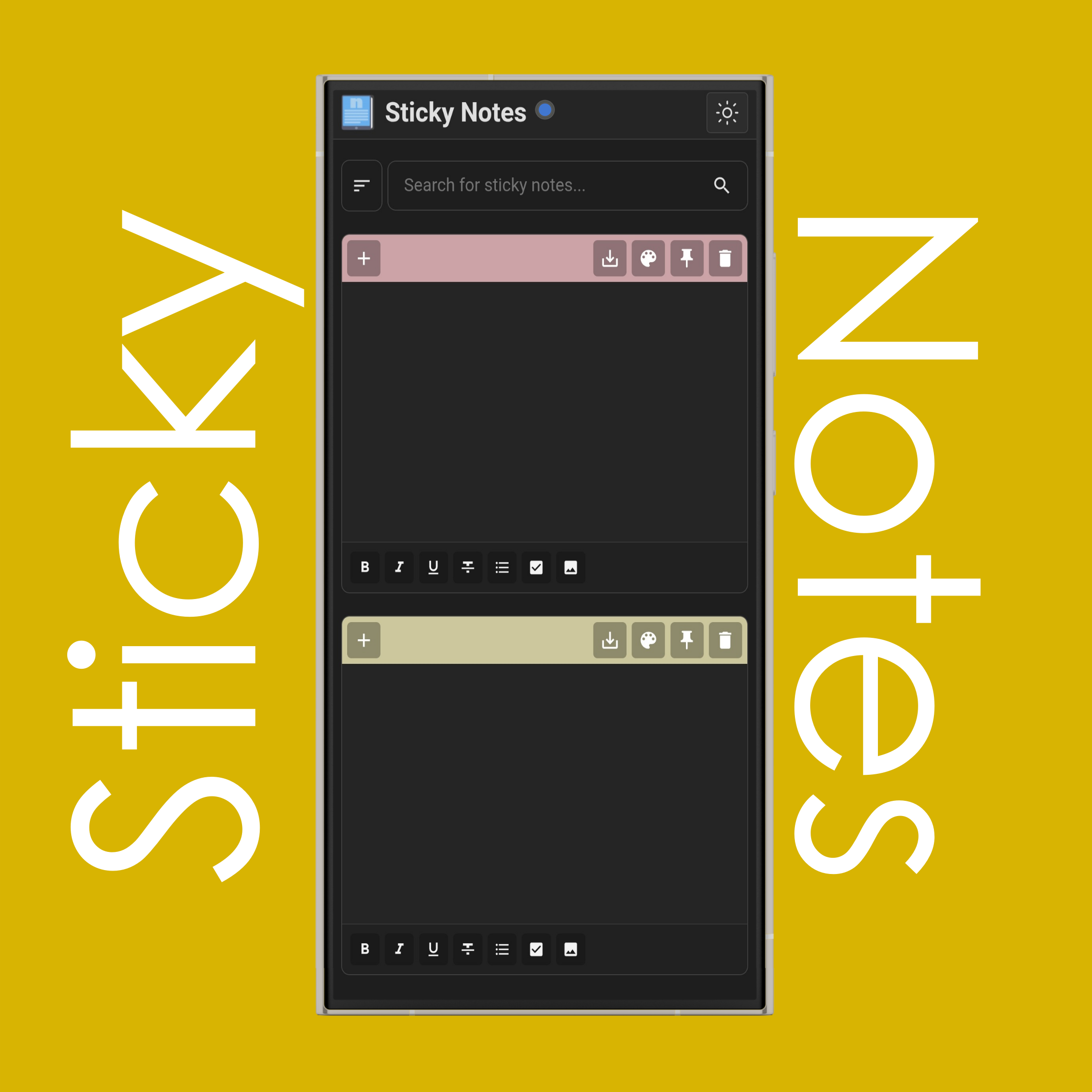
Click/tap button to delete the selected sticky note.
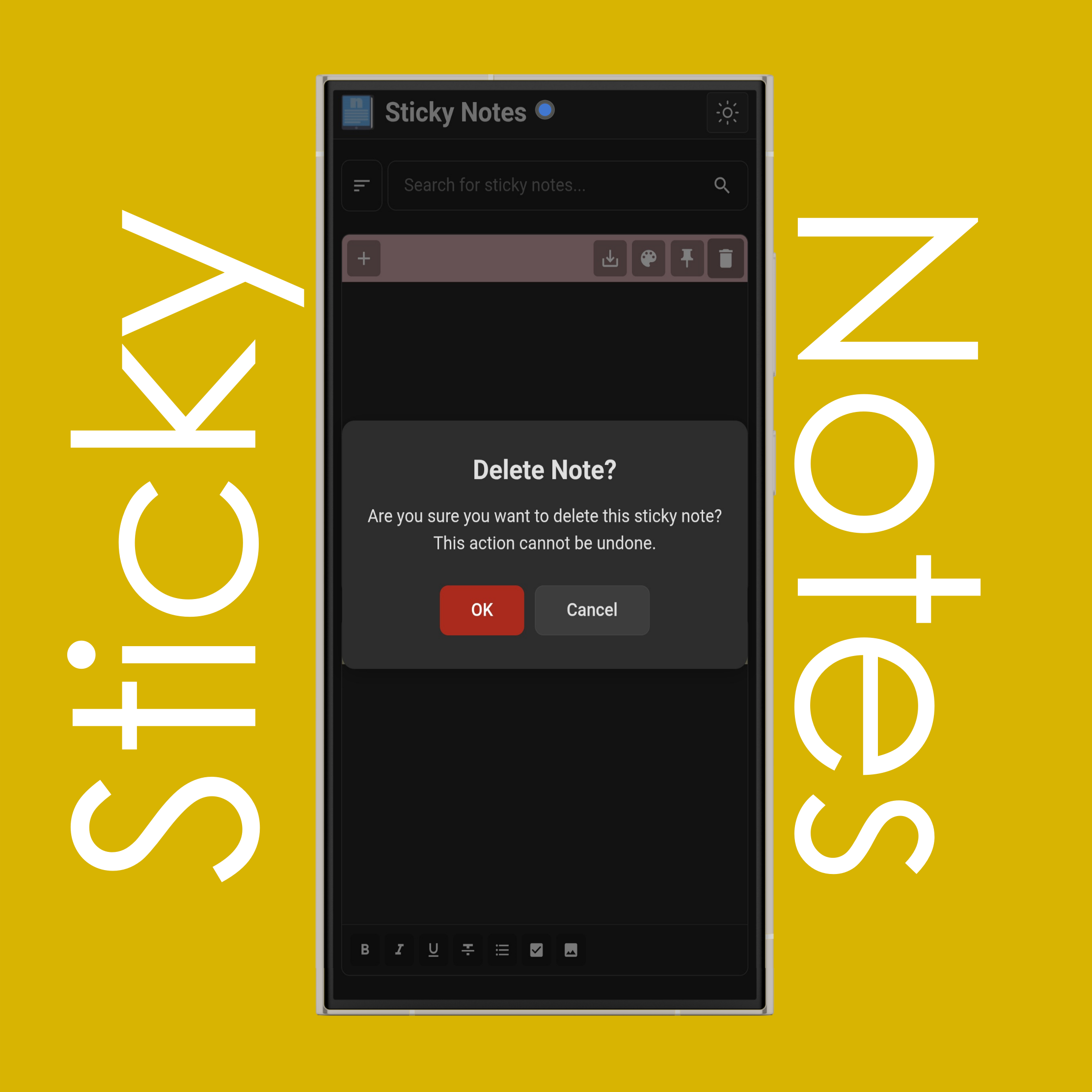
Click/tap "OK" to permanently delete the note, or "Cancel" to keep it.
NOTE: Once deleted, this action cannot be reversed.
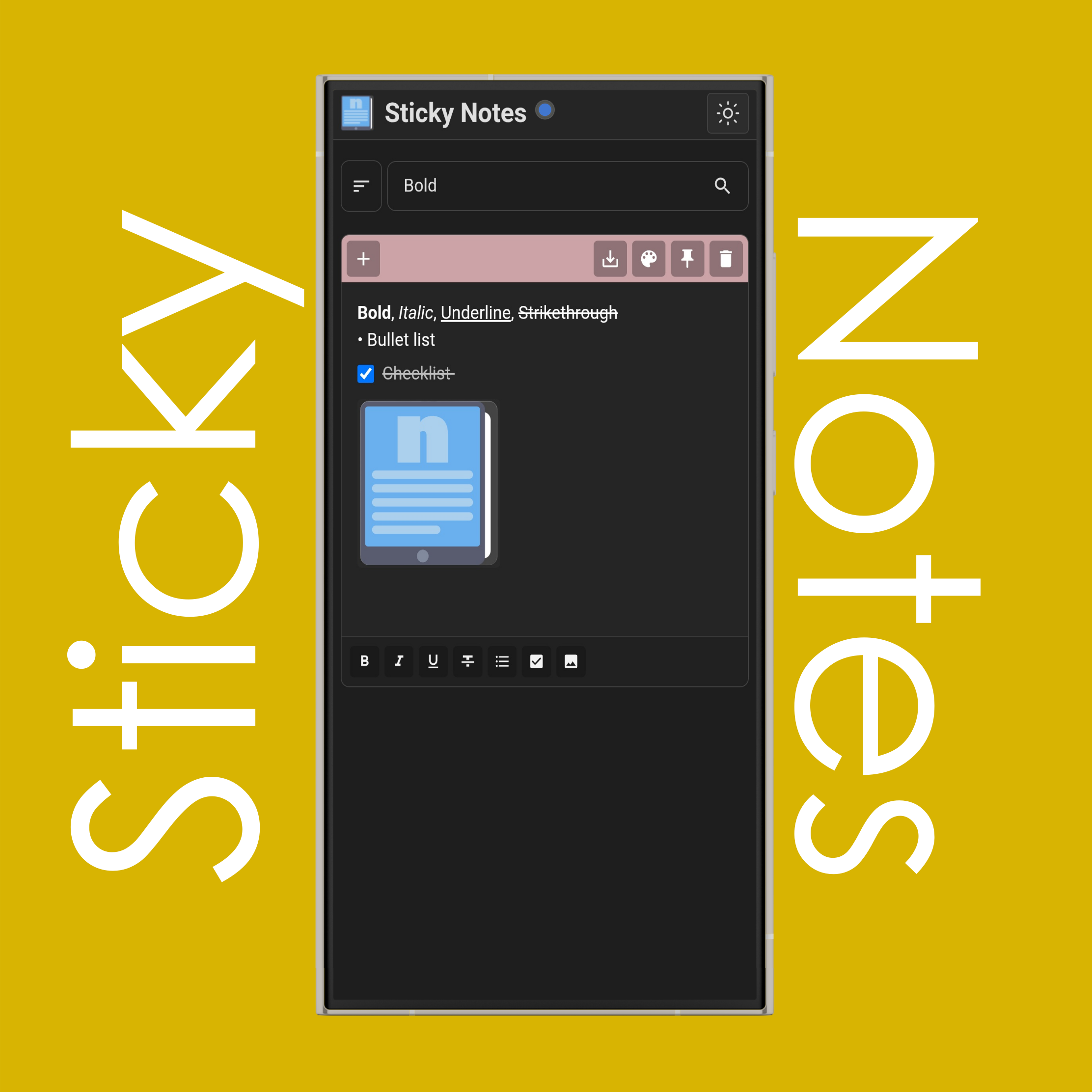
Use the search bar to search for a specific sticky note in your list by typing keywords from the note content.
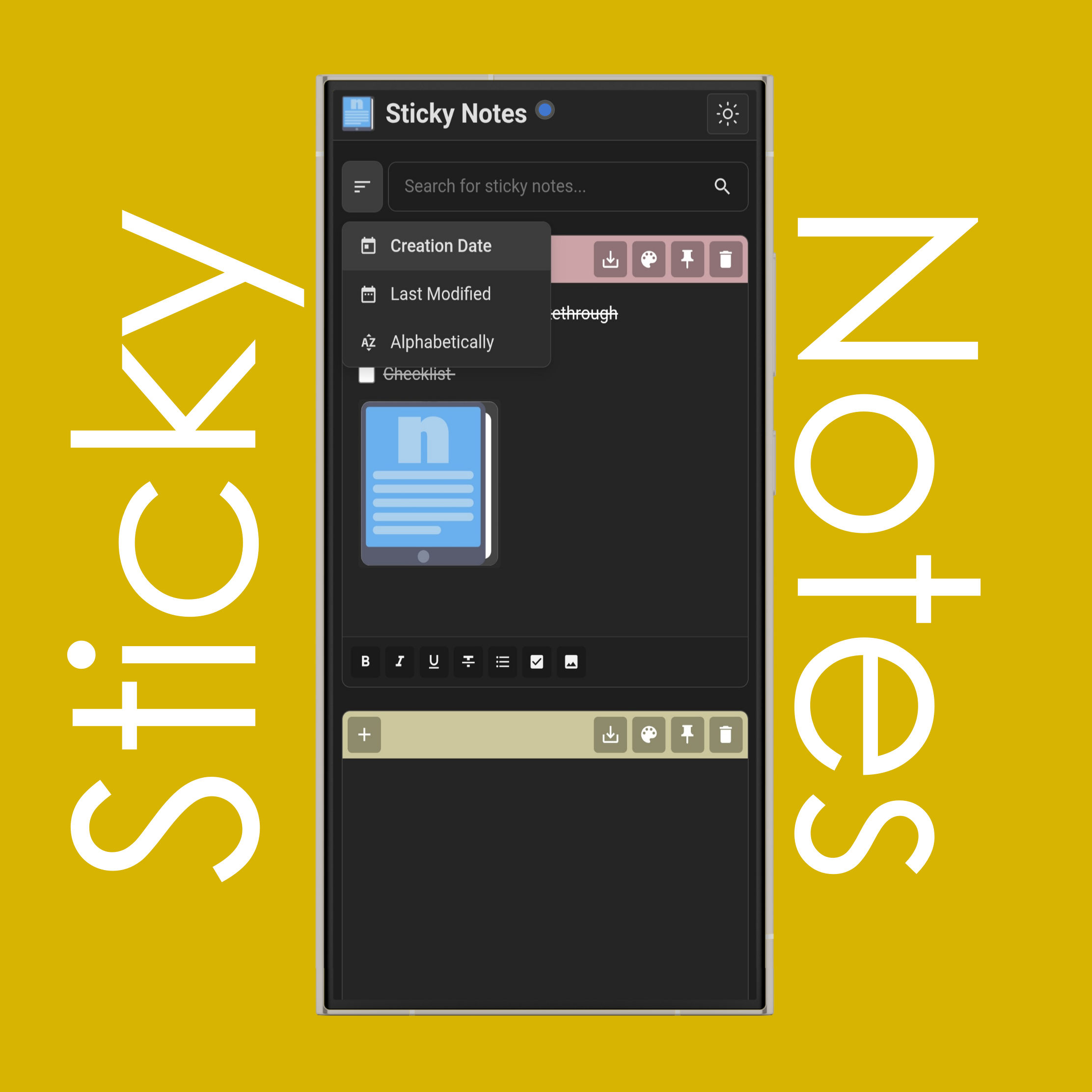
Use the (Sort) button next to the search bar to sort the notes by creation date, last modified time, or alphabetical order.
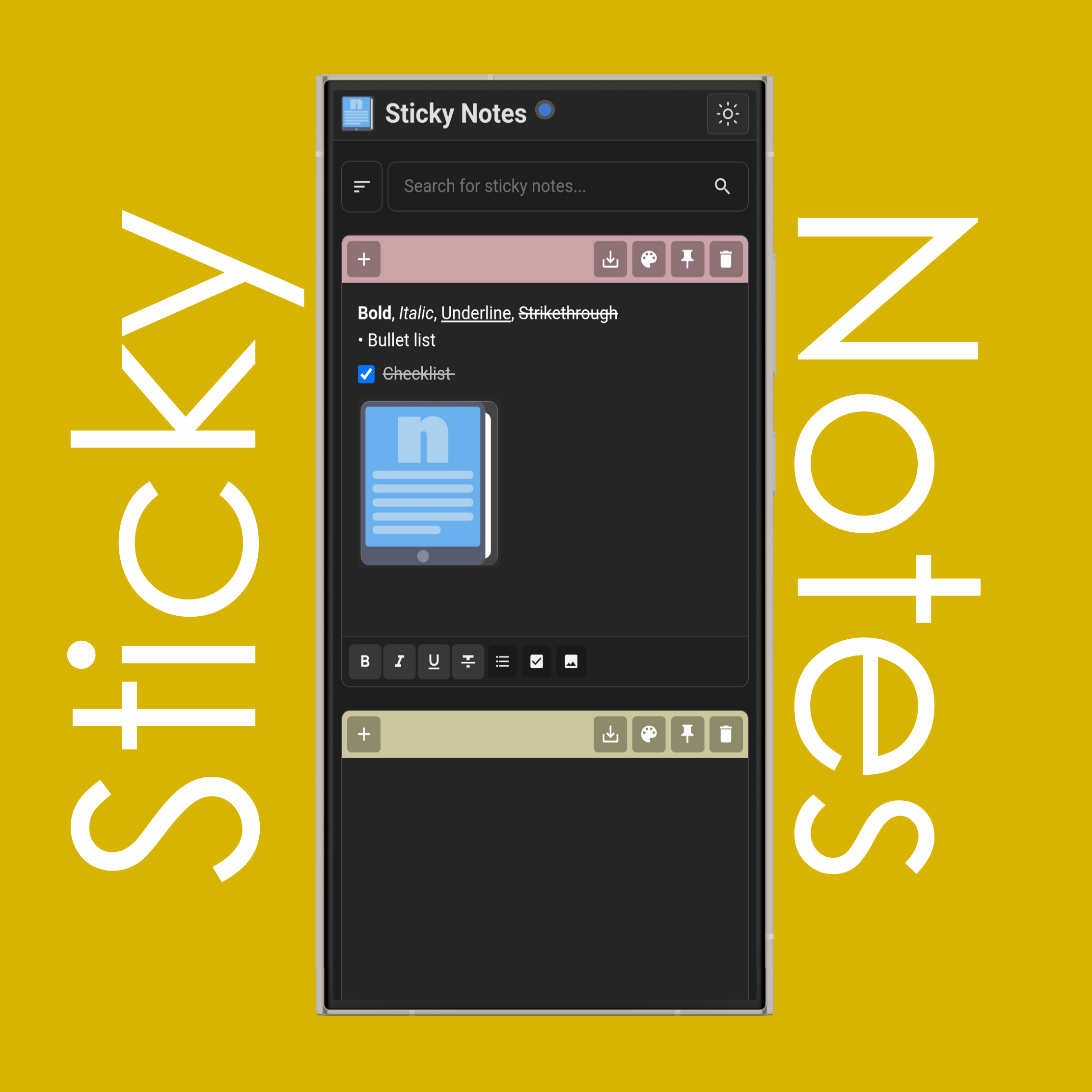
Use the formatting buttons at the bottom of each sticky note to style your notes: (Bold), (Italic), (Underline), (Strikethrough), (Bullet List), (Checklist), and (Image).
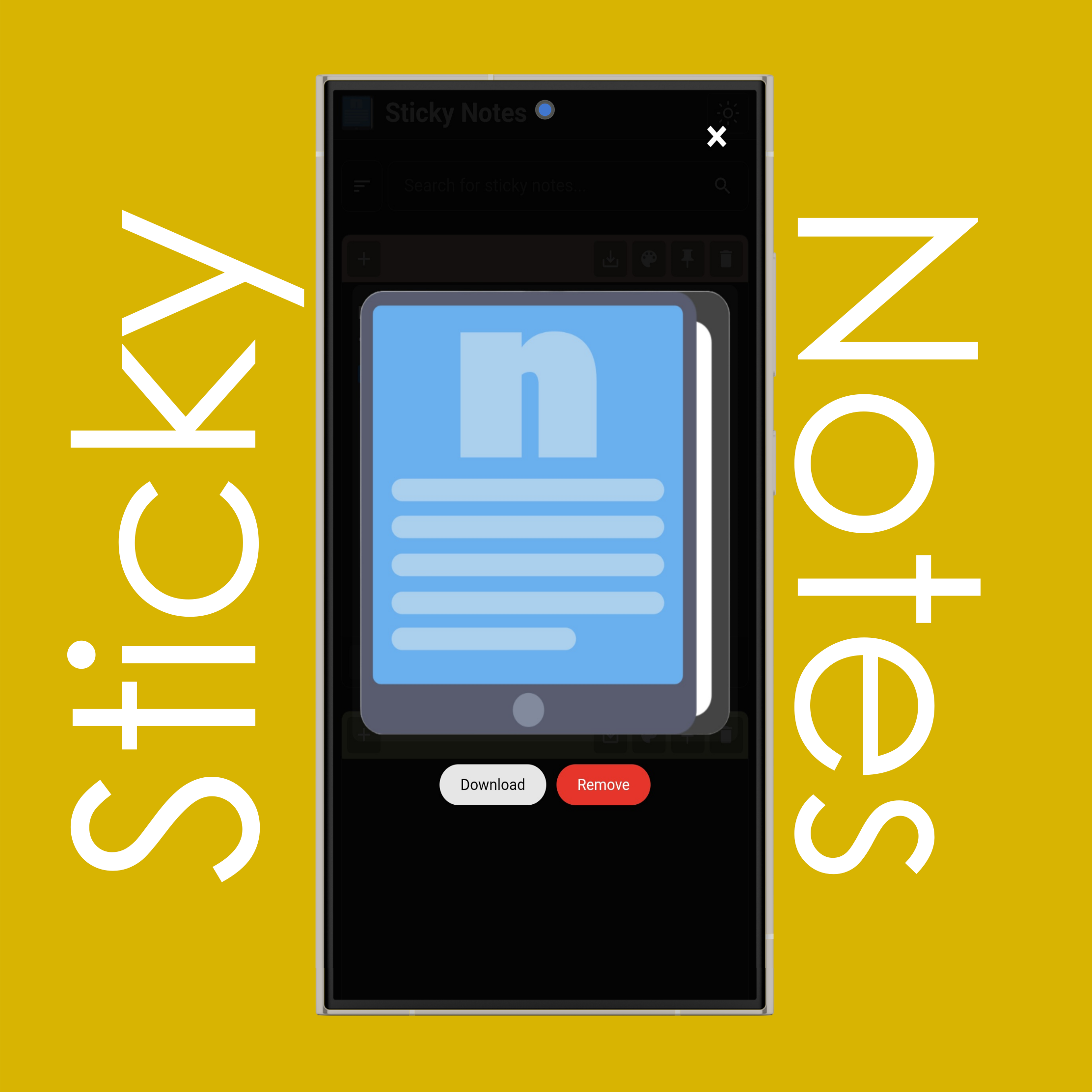
Double click/tap on the image to see it in full screen. In full screen mode, you can either download or remove it from the note.
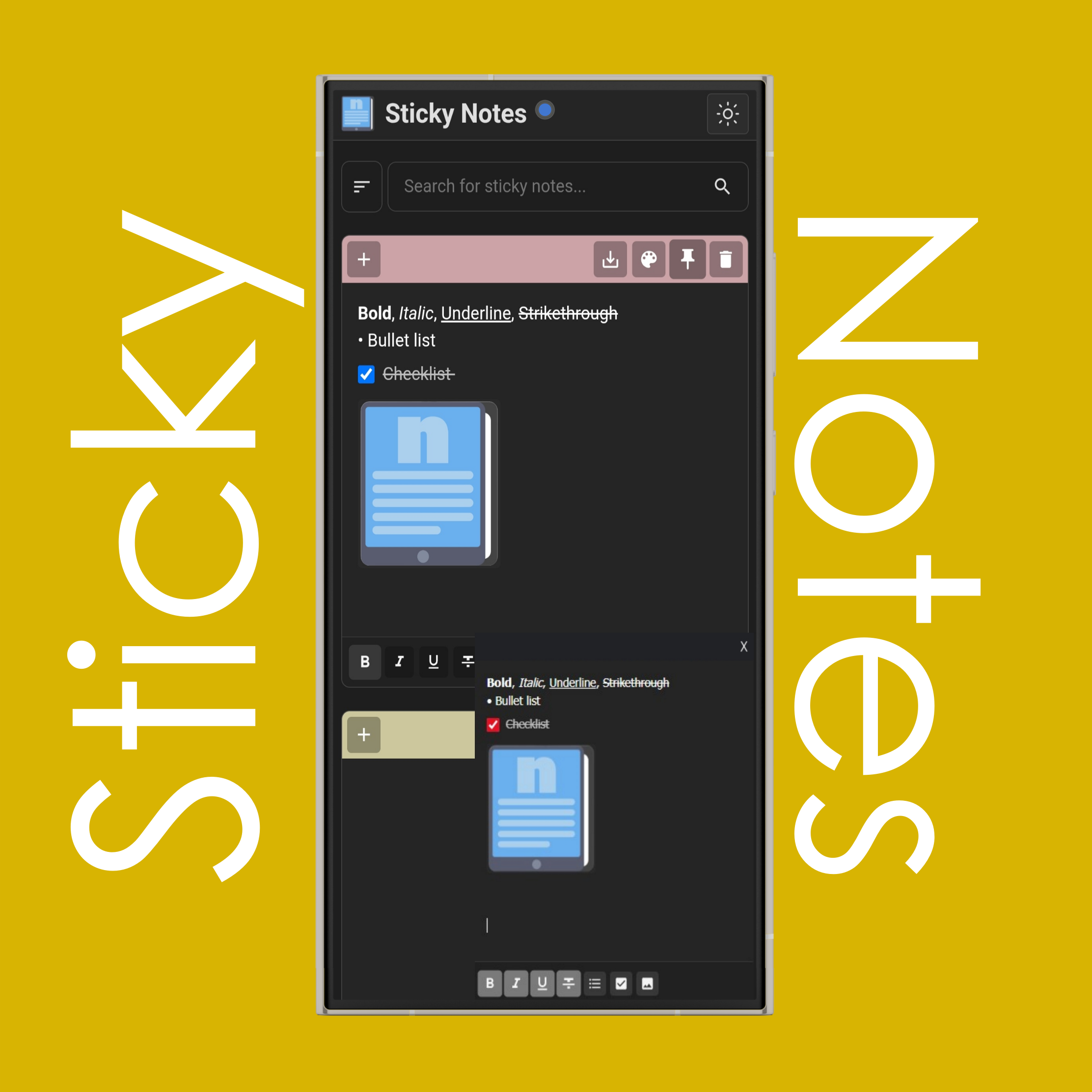
Click/tap (Pin) button to pin the selected note to the screen which follows you across any window you open, from applications to browser tabs.
It synchronizes and saves the pinned note in the note list at the same time and you are able to use formatting tools.
NOTE: Full PiP (Picture-in-Picture) feature is only available on desktop browsers (version 116 or higher for Chrome) such as Chrome, Mozilla, Edge (not available in Safari). On mobile, it remains sticky but only shows what is inside the note element and does not let you edit or write on it.
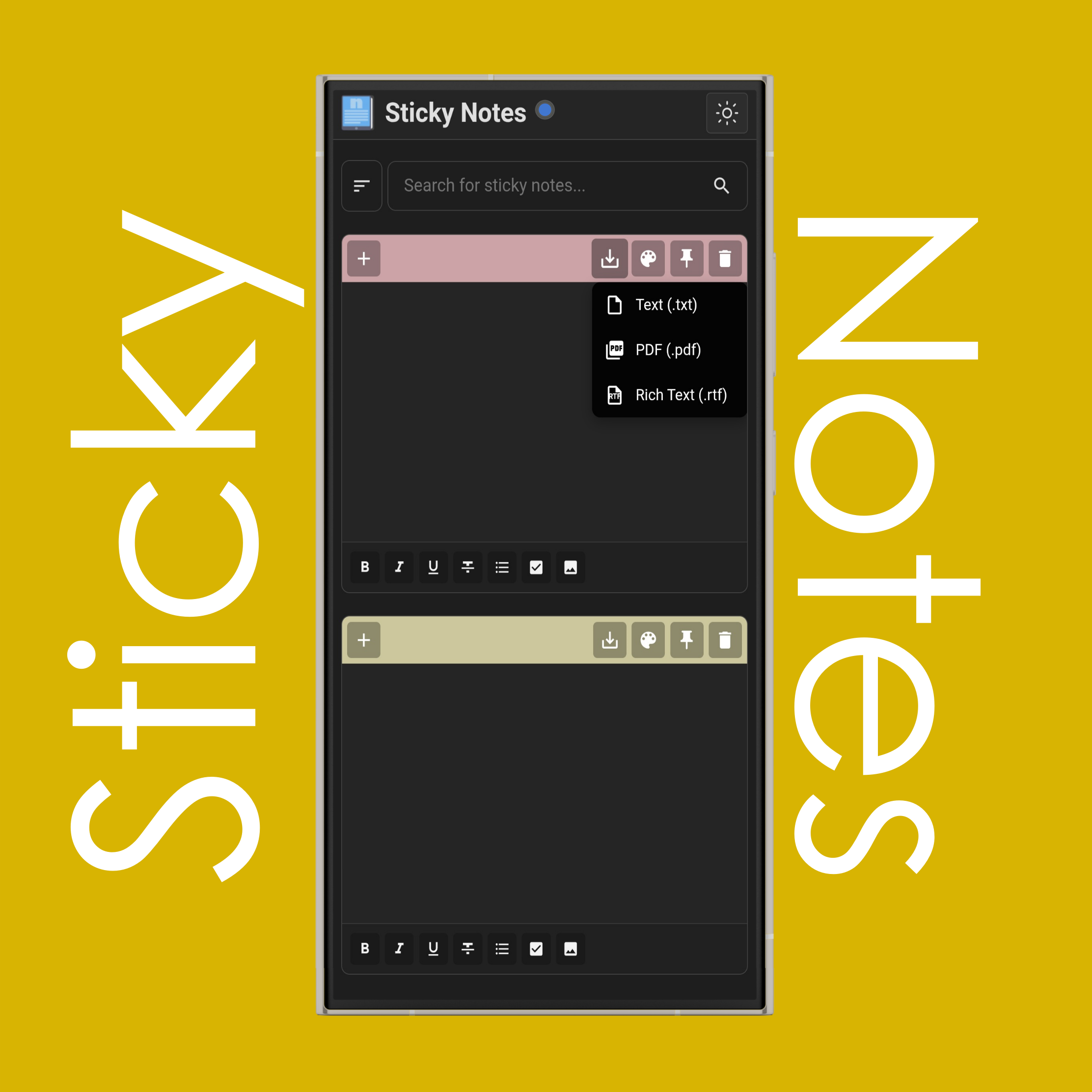
Click/tap (Download) button to save your note as .TXT, .PDF, or .RTF format.
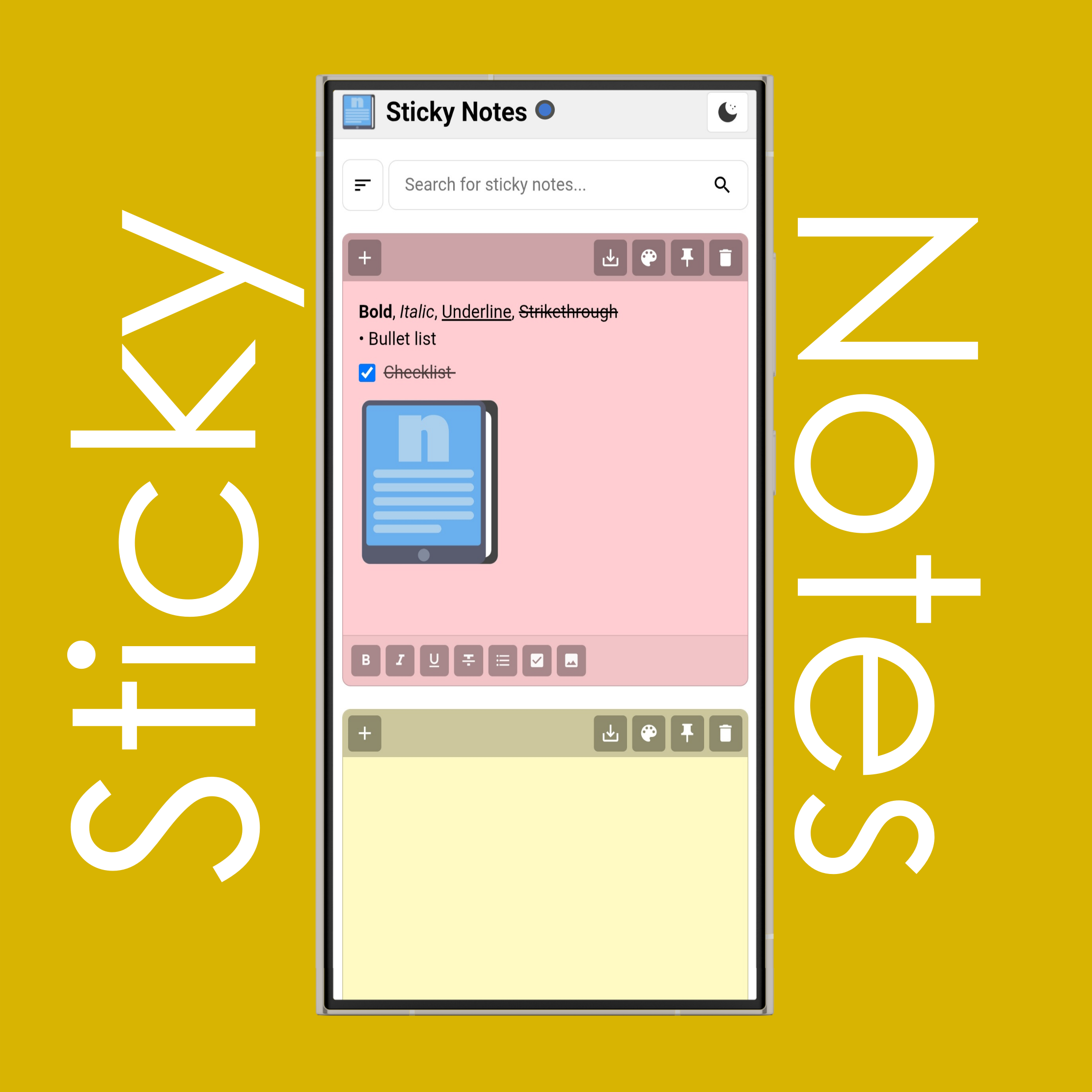
Use the (Sun) and (Moon) buttons on the top right side of the site title to change the site theme to light or dark mode.
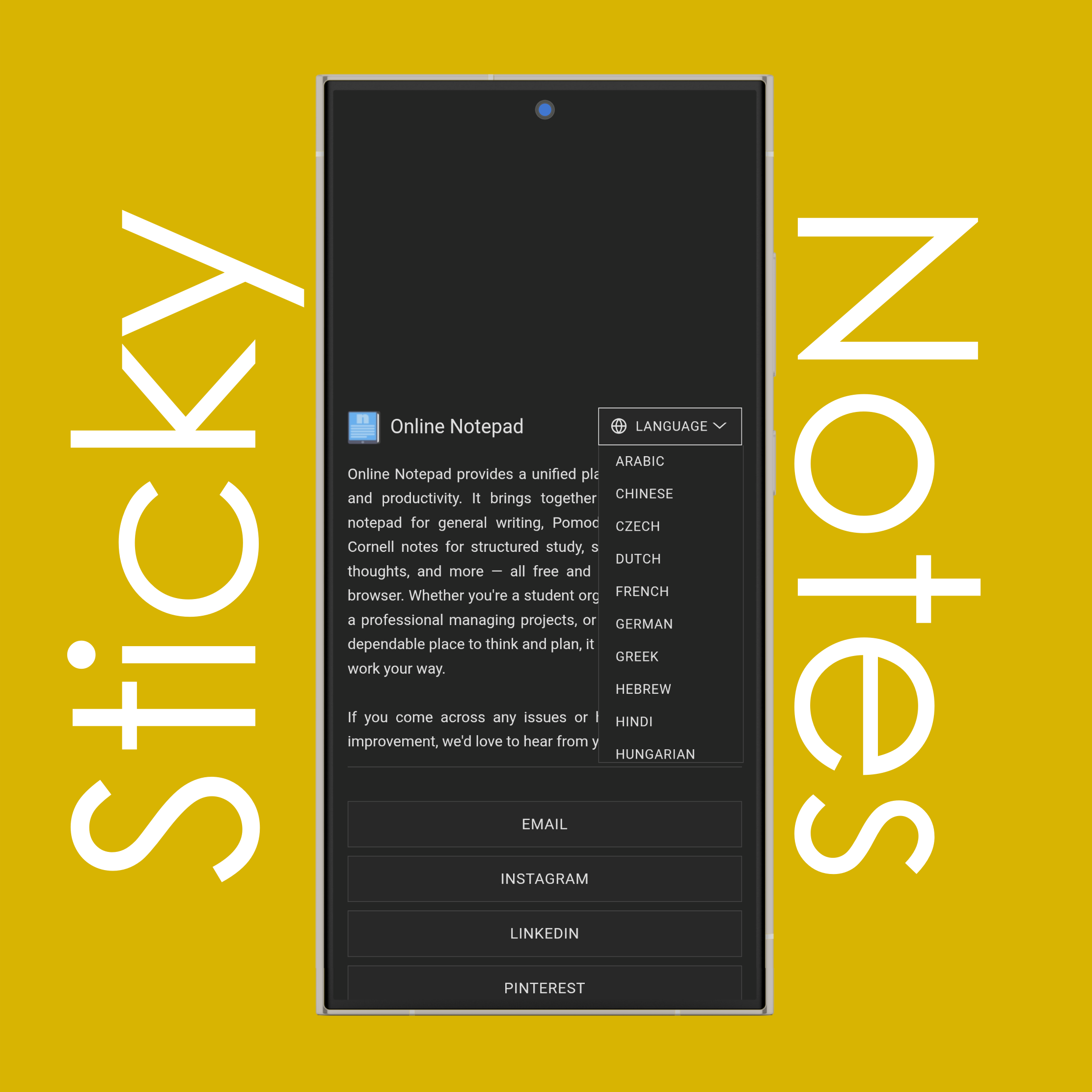
Use the language list at the bottom of the page to change the website language to your native language. It currently has 20 different languages available.
Think of it as a small useful note-taking area that follows you to any window on your computer. Notes are automatically synchronized and saved (backed up) as you type, updating their corresponding entry in the note list.
Each note supports color customization, basic formatting (bold, italic, underline, strikethrough), bullet lists and checklists, and the ability to insert pictures. You can also download your notes in multiple formats including .txt, .pdf, and .rtf.
Click/tap the (Pin) button at the top of any sticky note to keep it always on top. Pinned notes will remain visible even when you switch to other tabs, applications, or windows.
Note: Full features are supported only on desktop and in certain browsers.
They (full features) are currently not available on mobile or tablet devices. The feature only works on desktop Chromium browsers (version 116 or more) such as Chrome, Edge and Firefox (not available in Safari).
When you access sticky notes on mobile, it only displays as an uneditable video that that remains sticky and follows you across any window you open on your mobile device.
All your notes are automatically saved in your browser's local storage and remain private to your device and browser and cannot be accessed from any other device or different browsers in the same device. However, they may be deleted if you clear your browser data. To keep your notes safe, use the (Download) button.
Notes are stored locally on your device. To transfer notes, use the (Download) button to save them as .txt, .pdf or .rtf, then upload them on another device.
There is no limit (unless your computer's hardware), but very large numbers of notes may affect performance depending on your device, internet and browser storage limits.
No, once a sticky note is deleted, it cannot be recovered. The notes are stored locally in your browser, and deletion is permanent. To prevent data loss, it is recommended to use the (Download) button to save important notes as backup files before deleting them.
To print a sticky note, click the (Download) button and select PDF (.pdf) format. Once the PDF is downloaded, open it and use your browser's or PDF viewer's print function (Ctrl+P or Cmd+P) to print the note. Alternatively, you can download as .txt or .rtf and print from a text editor.
If you have additional questions or need assistance, please contact our support team.